
Face swap photos for free with zero watermarks: a tool-by-tool guide
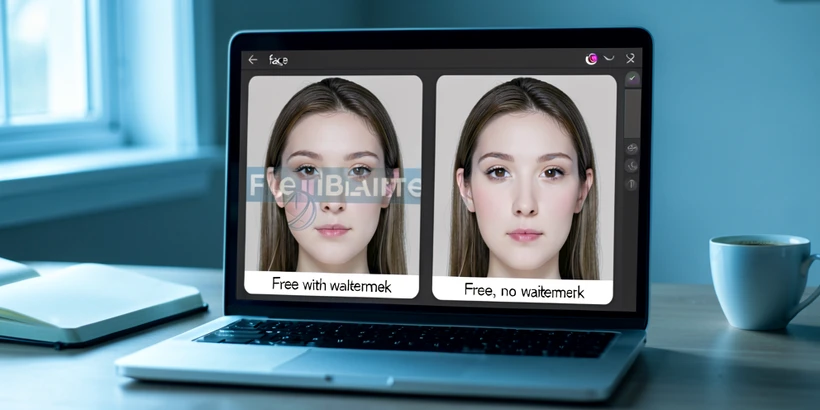
There are five web tools that will face swap a photo and hand back a clean file with no watermark on the free tier: Magic Hour, VoidMagic, Live3D, EaseMate AI, and Pincel. Three need no account at all. Two require a free sign-up to unlock credits. Pick by what you care about most: speed, quota, format support, or how aggressively the tool deletes your uploads.
Why your face swap output has a watermark, and how to avoid it
The watermark is a business decision, not a technical one. Most face swap tools generate a clean file internally and then composite a logo on top before download, gating the unstamped version behind a paid plan or hiding it inside a credit system you have to top up. A smaller group of tools skips the stamp entirely on the free tier, betting that volume and goodwill convert better than friction.
Worth saying out loud: "free" almost never means "unconstrained." It usually means a daily quota (Higgsfield AI gives 5 generations per day), a file-size cap (EaseMate accepts up to 10 MB, Live3D up to 20 MB), or a mandatory account to claim a one-time credit pool. The five tools below are genuinely watermark-free on output, but each carries one of those strings attached. Knowing which string is the difference between a smooth swap and an annoying dead end.
Quick comparison: free face swap tools with no watermark
Scan this before reading the walkthroughs. The four columns that decide which tool to open first are watermark policy, whether you need an account, what the free quota actually buys you, and how fast the swap returns.
| Tool | Watermark on free tier | Sign-up required | Free quota | Processing speed | Supported formats |
|---|---|---|---|---|---|
| Magic Hour | No | No | Free photo swaps, no stated cap | Under 1 minute typical | JPG, PNG |
| VoidMagic | No | No | Unlimited downloads | Seconds | JPG, PNG, JPEG, WEBP, HEIC |
| Live3D | No | No | Unlimited photo swaps (video capped at 3/day) | 3–5 seconds for photos | JPG, PNG, WEBP up to 20 MB |
| EaseMate AI | No | Yes | 30 credits granted on signup | Seconds | PNG, JPG, WEBP up to 10 MB; outputs PNG |
| Pincel | No | Free trial with generation limit | Limited free generations before upgrade prompt | ~5 seconds typical | Standard image formats |
Magic Hour, VoidMagic, and Live3D are the truly no-account options. EaseMate gates its credits behind a quick signup. Pincel sits in the middle, offering a free trial that is generous enough for one or two test runs but not for ongoing use.
Before you upload: how to prepare photos for a clean swap
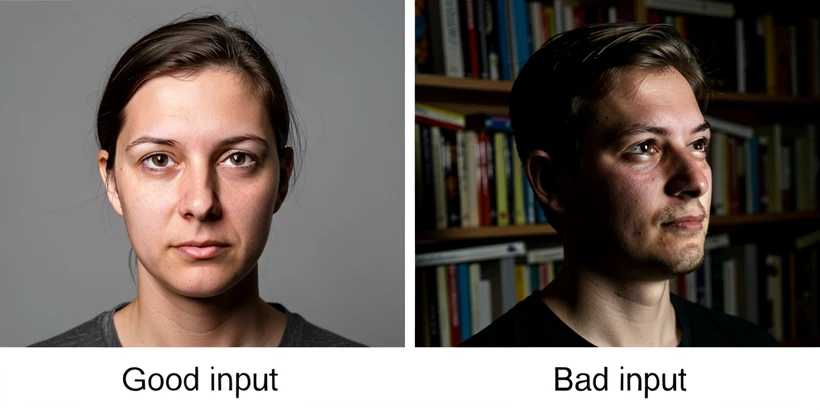
Input quality decides almost everything. A perfect tool will still produce a warped, eerie face if you feed it a blurry phone snap shot through a window at dusk. Spend a minute on the inputs and you will burn through far less of your free quota.
- Use front-facing, well-lit portraits for both the source photo (the body) and the reference face. Side-profile shots break the alignment step.
- Match lighting where possible: same general direction, similar warmth. A face lit from the right pasted into a scene lit from the left almost always reads as fake.
- Sharp and reasonably high resolution. Compressed screenshots and low-res social downloads strip the detail that landmark detection needs.
- Supported formats vary: JPG, PNG, and WEBP are the safe defaults. VoidMagic also accepts HEIC straight from iPhone.
- Mind the size caps. EaseMate AI tops out at 10 MB per image, Live3D at 20 MB. Larger files get rejected outright.
- Keep the face unobstructed. Hands across the chin, sunglasses, masks, or hair sweeping across an eye throw off facial landmark detection.
Pro tip: when the lighting in your two photos does not agree, pick the one with softer, more diffuse light as the target. Harsh directional light is harder for the blending model to compensate for, and the swap will look noticeably better.
Method 1: Magic Hour, no sign-up, no watermark, results in under a minute
Magic Hour is the fastest path from cold-open to clean download. No account. No payment screen. The free photo face swap returns a result in under a minute most of the time, and the file lands on your disk without a logo stamped across it. Magic Hour states its automatic alignment and blending reduces cleanup time by 70 to 90 percent compared with manual editing, which roughly matches the experience: minor seam work near the hairline is rarely needed.
- Open magichour.ai/products/face-swap. No account needed.
- Upload the target photo, the one containing the face you want to replace.
- Upload the reference face, or pick one from the preset list if you just want to test the tool.
- Click Swap Faces. Processing typically finishes in well under a minute.
- Download the output. The file is high resolution and carries no watermark on the free tier.
Method 2: VoidMagic, unlimited downloads, files auto-deleted in 2 hours
VoidMagic markets itself as 100% free with unlimited downloads, no paywall, and no signup. The format support is the broadest in this comparison: PNG, JPG, JPEG, WEBP, and HEIC, so iPhone photos go in directly without conversion. The output is HD and clean. Social proof is meaningful: a 4.9/5 rating from 2,000+ reviews and 67,521+ creators by VoidMagic's own count.
- Go to voidmagic.ai/ai-face-swap.
- Upload the photo where you want to replace a face. JPG, PNG, JPEG, WEBP, or HEIC all work.
- Upload the replacement face. If the target image contains multiple faces, pick which one to swap.
- Wait a few seconds, then download the HD result immediately.
VoidMagic states: "The result file will be automatically and permanently deleted in 2 hours. Please save it promptly." Download to a permanent folder before closing the tab. Once it is gone from their server, it is gone.
Method 3: Live3D, unlimited photo swaps in 3 to 5 seconds
Live3D is built for speed. Photo face swaps return in 3 to 5 seconds and the per-day cap that hurts other tools does not apply: photo swaps are unlimited on the free tier. Video swaps are a different story (3 per day, 10 second cap) but those sit outside the scope of this guide.
- Open live3d.io/ai-face-swap.
- Upload the source image. JPG, PNG, or WEBP up to 20 MB.
- Upload the reference face photo, same format and size limits.
- Hit Generate. The 3 to 5 second range is realistic, occasionally a bit longer during peak hours.
- Download. Photo swaps come back without a watermark.
Method 4: EaseMate AI, 30 free credits after sign-up, PNG output
EaseMate is the one tool here that asks for an account up front. In exchange you get 30 free credits, the output is PNG (lossless, useful if you plan to edit further), and uploads are deleted from EaseMate's server after processing. Thirty credits is enough for a serious test session: try a few input pairs, find the combination that looks right, and have credits left over for the final pass.
- Sign up at easemate.ai/face-swap. The 30 credits land in your account automatically after login.
- Upload the source photo, PNG/JPG/WEBP up to 10 MB.
- Upload the reference face, same constraints.
- Apply the swap. Blending takes seconds.
- Download the PNG. No watermark.
Method 5: Pincel, one reference photo, no model training
Pincel is for the case where you only have one decent photo of the reference face. Many face swap workflows imply you should feed the system multiple photos so it can build a model. Pincel skips that: one reference image is enough, processed in roughly 5 seconds for most jobs (longer when the service is under load). Uploaded images are not stored after processing.
- Open pincel.app/tools/face-swap.
- Upload the target image, the photo to add a new face to.
- Add the single reference face image. No training step.
- Generate. Around 5 seconds is typical.
- Download. The free trial includes a generation limit before an upgrade prompt appears, so save anything you want to keep right away.
Common mistakes that ruin a free face swap
Five things go wrong far more often than the rest. Each one wastes a free credit or a download slot, so it pays to recognize them before you upload.
Low-resolution or blurry input
Why it breaks: face swap models start by detecting facial landmarks, the points around the eyes, nose, mouth, and jawline that anchor everything else. Blurry pixels move those landmarks slightly off where they should be. The blending step then warps to the wrong coordinates, and the output shows a faint shimmer or seam around the eyes. Fix: upload the sharpest version of both photos available, and crop tight to the face if you have headroom to spare.
Side-profile or angled face
Why it breaks: the alignment models are trained almost exclusively on frontal faces. A three-quarter angle still works, but a full side profile gives the model nothing to map against, because half the landmarks it expects are simply not visible. Fix: front-facing portraits for both source and reference. If you only have an angled photo of the person, even a small one taken straight-on works better.
Big difference in face shape between source and target
Pasting a long oval face onto a wide round one forces the warping step into territory it was not designed for. The result distorts at the edges, often visible as a strangely tapered chin or a cheek that does not quite match the head behind it. Pick photos with broadly similar face geometry.
Anime, illustrated, or cartoon input
These models were trained on photorealistic faces. Stylized art breaks the assumption that an eye looks like a real eye, and landmark detection often misses entirely. The swap will run, but the output quality drops sharply. Use photographic inputs on both sides if you care about realism.
Cluttered background or overlapping elements
If the face detector has to choose between the actual face and a poster of someone else on the wall behind, it sometimes picks wrong. Even when it picks correctly, the blending step can leak background tones into the new face. Simple, uncluttered backgrounds give the cleanest result.
Quota tip: tools with daily caps reward a quick test pass. On Higgsfield AI's 5-per-day tier, do one cheap throwaway swap to confirm the input quality before spending a slot on the photo that actually matters.
Privacy and commercial use: what happens to your photos
Uploading a real person's face is a privacy decision, not just a technical one. The five tools above land in different places on that spectrum.
- VoidMagic: result files automatically and permanently deleted after 2 hours, never stored or used for AI training.
- EaseMate AI: uploaded files deleted from the server after processing, so they are not retained for later access.
- Pincel: does not store uploaded images after processing.
- MyShell (mentioned for context): processes face swaps in the browser and does not store or share uploaded images.
- Vidnoz: keeps uploaded photos confidential and not accessible to third parties without user consent.
- Magic Hour and Live3D: do not surface a specific auto-delete window in the way VoidMagic does. Treat anything you upload as potentially retained per their general terms.
Commercial use is the other axis. Free-tier outputs are usually fine for personal use, sharing with friends, or non-commercial social posts. Brand campaigns, paid ads, and revenue-generating content are different. Higgsfield AI explicitly restricts commercial rights for marketing and advertising to its paid Pro plans, so a free-tier output cannot legitimately appear in a sponsored campaign. Playform takes the opposite stance, granting intellectual property of generated images to the user. Read the terms of whichever tool you actually downloaded from before you publish.
And the obvious one that bears repeating: only upload photos you have permission to use. WaveSpeedAI puts it plainly in its terms: "Ensure you have permission to use all uploaded images and likenesses." The same rule applies whichever free tool you pick.
any of these actually work without a vpn from outside US? last time i tried magic hour kinda style sites the upload just hung
voidmagic worked for me from a regional ip, no vpn, kinda surprised tbh
voidmagic auto-deletes in 2h supposedly, that's the only one i'd touch with a real face on it
tried easemate last month, 30 credits melted in like 4 tries, half were unusable lol
skimmed it ngl, just need the no-account one that returns under a minute. magic hour then
wait, magic hour really doesn't ask for email? feels too easy
yeah no email. used it from a coworker's laptop, 137 swaps total over a weekend, zero watermarks
no email != no logging. they still have the upload sitting on their server
live3d throttled me at like the 8th swap last summer, said unlimited but lol no. could be different now
live3d was 4 seconds for me, on phone in the subway, no throttling yet
voidmagic takes heic directly, that's the actual win for iphone people
easemate output is png which matters, jpg recompression kills the cheek blend
anyone got pincel to work past the trial? upgrade prompt hits after 2 jobs for me
the 20mb cap on live3d, my iphone heic is usually 3-4mb so fine
didn't finish but pincel sounds like a free trial dressed up as free
hairline seam is still there on every tool i've tried, just less visible on voidmagic with soft light input
+1
had a case once where the swap straight up failed on a side profile, long story
sounds like a press release the way they word the magic hour 70 to 90 percent cleanup thing
side profile failure is in the article actually, that's expected
the privacy section is the only part that matters here imo. voidmagic and easemate are the only two saying anything concrete about deletion