
Halloween face swap: a step-by-step guide to free AI tools that actually work
Pick a clear, front-facing selfie. Open a browser-based AI face swap tool. Upload your selfie as the source and a Halloween character as the target. Hit swap, then download. That is the entire workflow, and on Icons8 Face Swapper it runs without an account. The rest of this guide covers the five tools worth using, the photo prep that decides whether the blend looks real or rubbery, what each service does with your uploaded photo, and a fix list for the four ways a Halloween face swap typically goes wrong.
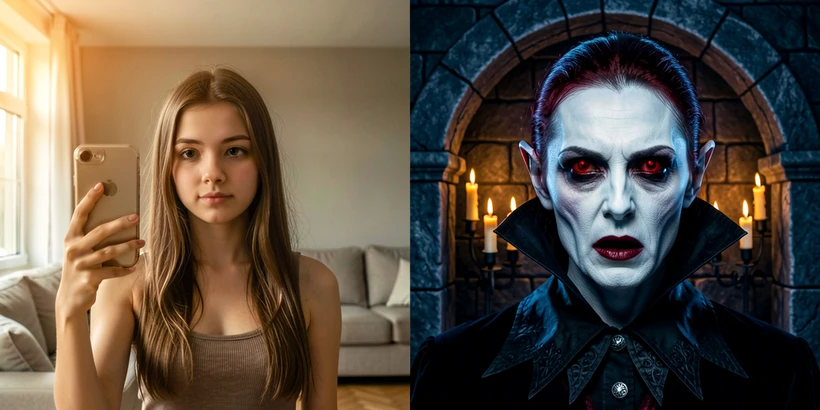
What you need before you start
Most failed Halloween face swaps die in the photo selection stage, not in the AI. Get the inputs right and the rest is mechanical.
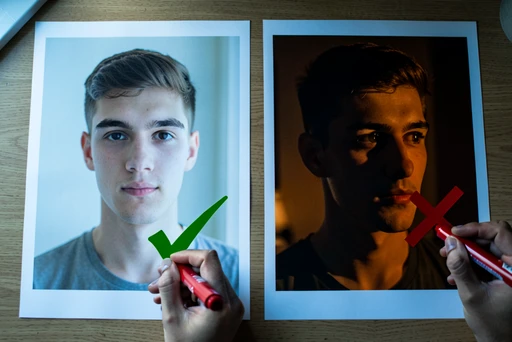
- A clear, well-lit, front-facing selfie. Angled shots and partially obscured faces are the single biggest source of bad results.
- JPEG or PNG format. LightX, MyEdit, Icons8, and most browser tools accept both.
- A stable internet connection. Every method below runs in the browser, so a flaky link mid-upload kills the job.
- A Halloween character target image (vampire, zombie, witch, skeleton) if you go the upload-a-target route. Skip this for prompt-driven tools.
- An account only for Pincel; Icons8, MyEdit, LightX, and OpenArt let you start with no sign-up.
- Halloween-specific warning: take the source selfie with the mask off, no face paint, no oversized hat brim across the eyes. The AI needs to find your eyes, nose, and mouth.
That last point trips up more readers than any other. A costume mask occludes the exact landmarks face detection relies on, so the model either refuses the photo or pastes your face on at a strange angle. Capture a clean selfie first, then let the tool add the spooky transformation digitally.
Choose the right tool: free tiers, sign-up, and watermarks at a glance
Five tools cover the realistic options for a casual user. They split cleanly between upload-a-target swappers and prompt-driven generators.
| Tool | Type | Sign-up | Speed | Notable detail |
|---|---|---|---|---|
| Icons8 Face Swapper | Upload-a-target | Not required | A few seconds | Automatic face detection, no manual selection |
| MyEdit (CyberLink) | Upload-a-target | Browser-based | A few seconds | Optional image-to-video output in 1:1, 9:16, 16:9 |
| LightX | Prompt or preset | Browser-based | A few seconds | JPEG and PNG output, ready-made spooky styles |
| OpenArt | Prompt with slider | Browser-based | A few seconds for previews | Creativity-level slider tunes intensity |
| Pincel | Prompt or template | Required | 10–20 seconds per image | Generates at 768x1024px, free trial limit applies |
| FlexClip | Prompt | Browser-based | Several seconds | Eight AI models to choose between |
| Edimakor (HitPaw) | Desktop | Install required | Varies | Halloween image effects menu built in |
Privacy callout. Pincel publishes a clear statement: it does not share or sell user data and does not store processed or generated photos. OpenArt similarly says edits remain private with no external access to image data. The other tools listed above have no equivalent public statement that surfaced during research, so default to caution there.
If you only care about speed and zero friction, Icons8 wins. If you care about preset Halloween characters bundled in, MyEdit. If you want to type a description rather than hunt for a target image, LightX or OpenArt. If documented no-storage policy is the deciding factor, Pincel or OpenArt.
Method 1: Face swap using Icons8 Face Swapper (fastest, no account needed)
- Go to the Icons8 Face Swapper page in any desktop or mobile browser. No sign-up.
- Click Browse and select your Halloween character image as the target. Pick a face that is fully visible and front-facing.
- Under Upload, click Browse again and choose your front-facing selfie in JPEG or PNG.
- Wait a few seconds. Icons8 detects both faces and swaps them automatically; there is no manual landmark selection.
- Click Download to save the result.
Quick win for the blend quality: pick a Halloween target image where the face is lit from roughly the same direction as your selfie. If the vampire portrait is lit from the left, take your selfie with light coming from the left too. This single decision moves the result from obviously fake to convincing more than any other adjustment.
Method 2: Halloween face swap on MyEdit (preset Halloween characters)
MyEdit, by CyberLink, is the obvious choice when you do not want to source a target image yourself. The Halloween library covers the usual suspects: vampire, zombie, witch, skeleton.
- Open MyEdit AI Face Swap in a browser.
- Upload a Halloween character image as the target. Either pick from the bundled options or supply your own.
- Upload a clear, frontal selfie as the source face. Avoid angled shots.
- Click Swap Face.
- Download the result. If you want a moving version, MyEdit supports image-to-video export with display ratios of 1:1 (Instagram square), 9:16 (TikTok and Stories), and 16:9 (YouTube and desktop).
Method 3: AI Halloween portrait using LightX (text prompt + photo upload)
LightX flips the workflow. Instead of bringing your own target Halloween character, you describe one. The tool transforms your uploaded photo into a Halloween portrait based on the prompt and finishes in a few seconds, accepting both JPEG and PNG.
- Upload a clear, well-lit photo where your full face is visible.
- Either select a ready-made spooky style from the preset gallery or write a prompt describing your Halloween look.
- Click Generate.
- Download and share to Instagram, TikTok, or WhatsApp.
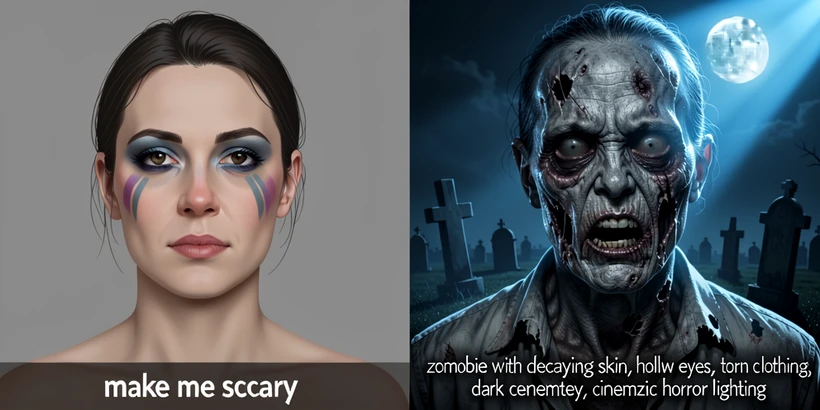
Mini-guide: how to write a Halloween prompt that actually works
Vague prompts give vague results. The mechanism is straightforward: a generation model translates each descriptive token into pixel-level features, so a prompt with one token ("scary") only constrains a small slice of the output. The rest gets filled in with whatever the model considers an average Halloween look.
Layer the prompt in three passes: character type, physical details, then setting and lighting.
- Bad prompt:
make me scary. The model has no character class, no skin treatment, no environment to anchor the result. - Better prompt:
vampire with pale skin and red eyes. Now there is a character and two physical anchors, but the background and mood are unspecified. - Strong prompt:
zombie with decaying grey skin, hollow sunken eyes, torn clothing, dark cemetery background, cinematic horror lighting. Five anchors, including lighting, give the model enough constraint to produce something specific.
Method 4: Halloween filter on OpenArt (adjustable creativity level)
OpenArt is the right pick when you want a dial, not a switch. Its creativity-level slider controls how aggressive the Halloween transformation is, which makes it easy to land on a result that still looks recognizably like you.
- Drag and drop your image into the area labeled "Drop your files here".
- Wait for the file to load. OpenArt redirects you to the editing page automatically.
- Select the Halloween theme. Use the creativity-level slider: lower for a subtle costume look, higher for full horror transformation.
- Choose how many output variations to generate, then click Create. Previews finish in a few seconds.
- Download the variation you like best.
Pro tip. Generate three variations at a mid-range creativity setting before going extreme. The mid-range outputs almost always produce the most shareable balance between recognizable likeness and spooky effect, and you avoid the uncanny-valley result that high creativity tends to deliver.
OpenArt also publishes a clear privacy line: edits remain private and secure with no external access to your creative process or image data. That is unusually direct for this category.
Privacy: what happens to your photo after you upload it
This is the question every honest tool comparison should answer, and most do not. Here is what is actually published.
| Tool | Stated retention policy |
|---|---|
| Pincel | Does not share or sell data to third parties; does not store processed or generated photos |
| OpenArt | Edits remain private and secure with no external access to creative process or image data |
| Halloween AI Face Swap (Google Play app) | No data collected, no data shared with third parties |
| Icons8 Face Swapper | No explicit retention statement surfaced; check the site's privacy policy before uploading |
| MyEdit (CyberLink) | No explicit retention statement surfaced; check the site's privacy policy before uploading |
| LightX | No explicit retention statement surfaced; check the site's privacy policy before uploading |
| FlexClip | No explicit retention statement surfaced; check the site's privacy policy before uploading |
Two practical habits cut your exposure regardless of the tool. First, crop the selfie tightly to your face before uploading, so any background detail that hints at your home, car, or workplace simply is not in the file. Second, if a tool has no published retention statement and you still want to use it, treat the upload as effectively public and use a photo you would not mind appearing elsewhere.
Troubleshooting: why your Halloween face swap looks wrong and how to fix it
Four failure modes cover almost everything. Each maps to a specific stage of the pipeline.
Face looks misaligned or floats on the character
Why it happens: face swap models are trained heavily on frontal faces and use eye, nose, and mouth landmarks to anchor the source onto the target. A three-quarter profile shifts those landmarks into positions the alignment step did not expect, so the warp ends up pasting a flat plane onto a tilted head.
Fix: retake the selfie looking straight at the camera with your head level, then crop it so the face is centered.
Skin tone or lighting looks mismatched
Why it happens: the blending stage estimates a target color profile from the surrounding pixels and tries to harmonize the source. When source and target are lit from opposite directions, the model has no consistent shading direction to copy, and the seam where face meets head reads as a hard edge.
Fix: pick a target Halloween image lit from the same side as your selfie. Both front-lit, or both side-lit from the left, or both side-lit from the right.
Result is blurry or low detail
- Avoid screenshots and heavily compressed images. Each compression pass loses landmark sharpness.
- Upload the highest-resolution version of your selfie you have.
- If the source is from a messaging app, ask the sender to AirDrop or share the original file.
AI did not detect your face at all
Most often this is the costume-mask trap. Glasses, hair across the eyes, a witch hat shadowing half the forehead, or a partial mask on Halloween night all blank out the landmarks the detector needs. Crop tighter so the face occupies at least 40% of the image area, remove the mask if possible, and retry.
Halloween effect is too subtle or too extreme
Use a tool with a creativity or intensity dial (OpenArt). For prompt-driven tools without a slider, refine the prompt: add or remove physical descriptors ("slightly decaying skin" versus "heavily decaying grey skin") and adjust the lighting term ("soft horror lighting" versus "cinematic horror lighting") to nudge the intensity up or down.
Legal note: synthetic media and responsible use
AI-generated face swaps that involve a real person's likeness sit inside the broader synthetic media and deepfake category, and the rules vary by jurisdiction. Edimakor itself advises users to consult a qualified legal professional and to ensure generated content complies with applicable local, state, and federal laws related to synthetic media and deepfake technologies. Take that seriously.
- Swap faces with your own photos, or with photos where you have explicit permission from the person depicted.
- Do not use a Halloween face swap to impersonate, deceive, or harass anyone.
- Posting publicly with a clear AI-generated label avoids most of the social pitfalls and stays inside the spirit of disclosure rules emerging in several jurisdictions.
Halloween is a low-stakes context for synthetic media, which is exactly why it is a good place to learn the habits. Clean source selfie. Matched lighting. Specific prompts. Tools with published privacy. Permission for any face that is not your own. Get those five right and the rest of the pipeline takes care of itself.
icons8 took forever for me yesterday, are we sure 'a few seconds' is the actual number? mine sat there like 40s for one face
yeah no idea how they get 'a few seconds', mine hangs on the upload step half the time
wait, is it the upload thats slow or the swap itself??
upload usually. compute is like 3-4s tops on icons8 when the queue isnt slammed tbh
queue is the whole story