
Sharp face swap output: a cause-first repair guide
Blurry face swap output traces back to one of five mechanical failures, and the fix only works when you match it to the right cause. Skim this short check first. Look for a face_enhancer not found message in the tool log (Cause 1). Confirm the model is not stuck at a 64-pixel output (Cause 2). Audit whether training ran on CPU or on homogeneous footage (Cause 3). Inspect source and target frames for motion blur or harsh shadows (Cause 4). Verify any post-export resize used an AI upscaler rather than bicubic resampling (Cause 5). The rest of this guide walks each cause to a fix.
Why does my face swap look blurry? (Quick diagnosis)
Five distinct failure modes produce the same soft, melted look. Run through them in this order, because the cheap fixes (enabling a restorer, swapping a model) precede the expensive ones (retraining).
- Missing face enhancer: is GFPGAN or CodeFormer registered as an active frame-processor, with no
not founderrors in the log? - Low-resolution model: is the selected model an Original or Lightweight build that caps output at 64 pixels?
- Undertrained model or thin data: is training running on CPU, or is the dataset narrow in angles and lighting?
- Bad inputs: do the source and target frames have motion blur, harsh shadows, or sub-720 resolution?
- Naive upscaling: was the swapped output resized in a standard image editor instead of an AI upscaler?
Close-up and high-resolution targets expose model limits that standard medium shots hide. A swap that looks acceptable at 480p can fall apart on a 1080p portrait, so always test at the resolution you plan to publish.
Cause 1: Face enhancer (GFPGAN / CodeFormer) not enabled or not found
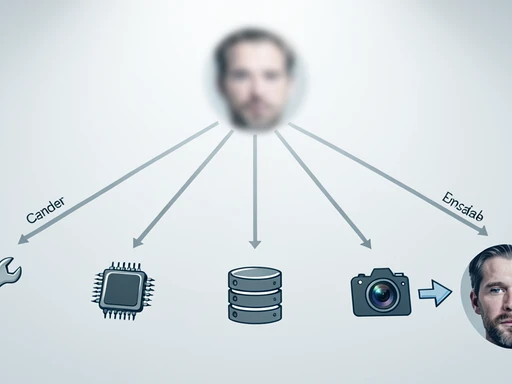
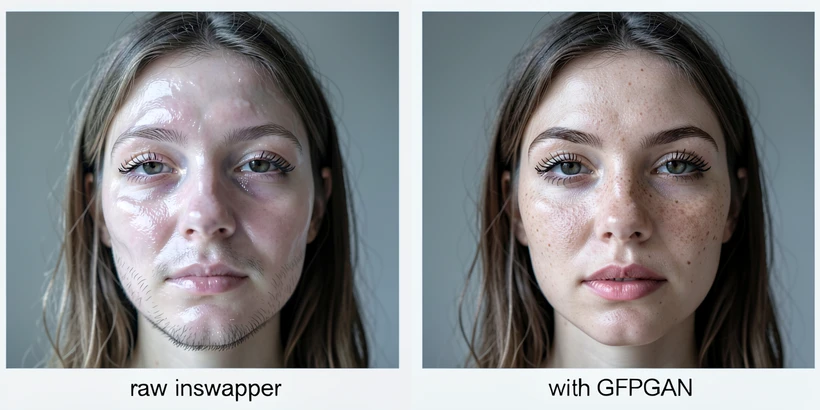
The raw inswapper model produces a deliberately soft face. It blends the identity vector into the target frame at low spatial detail, and the sharpening step lives outside the swap itself. Without a face restoration post-processor stacked after the swap, the output stays soft no matter how clean your inputs are. This is the single most common reason a beginner's first run looks worse than the demos.
Deep-Live-Cam: register face_enhancer as a frame-processor
On certain Deep-Live-Cam builds the GUI lets you tick face_enhancer, yet the runtime reports face_enhancer results in not found and quietly skips it. The bug is documented against the CUDA execution provider in Deep-Live-Cam issue #1360, reproduced on an NVIDIA RTX 3050 4 GB GPU with ONNXRuntime 1.21.0 and Python 3.10.9. To verify the processor is actually live:
- Open the frame-processors panel and confirm
face_enhanceris in the active list, not just available. - Run any swap and tail the console: a successful registration prints the GFPGAN model load line; a failed one prints the
not foundwarning. - If registration fails, check that the GFPGAN ONNX file downloaded fully (compare bytes to the release page) and that your execution provider matches your GPU build.
ComfyUI-ReActor: enable the restoration node
ReActor exposes face restoration as a separate node that you wire after the swap node. Drop in either ReActor Restore Face with GFPGAN-v1.4 or ReActor Restore Face with CodeFormer, set the visibility weight between 0.7 and 1.0, and connect it before any save-image node. If the node is absent or wired in parallel rather than downstream of the swap, the saved image is the unrestored inswapper output. ReActor users on a Linux RTX 5090 build (ComfyUI 0.3.62, 32 GB VRAM) have also reported spatial jitter in close-up self-portrait video, an artifact tracked in the ReActor issue tracker; turning the restorer on dampens the visible flicker even when the underlying jitter persists.
Bad ONNX files masquerade as missing files. If the swap runs but the restorer never fires, hash-check inswapper_128.onnx and the GFPGAN weight against the published checksums before you blame your settings. A truncated download is silent on most builds.
Cause 2: Low-resolution model applied to a high-resolution close-up
FaceSwap ships several model architectures, and the legacy Original and Lightweight builds train to a 64-pixel output, per the project's own forum FAQ. Stretching that 64-pixel patch onto a 1080p face is interpolation, not generation. The pixels you wanted are never produced; the resampler just blurs across the gaps. Faces are extracted at 256x256 inside the pipeline, but the output ceiling lives in the model itself, not in the extractor.
Switch to a higher-resolution architecture (Villain, DFL-SAE, Phaze-A configured at 128 px or 256 px) before you do anything else if you are publishing close-ups. Standard medium shots can disguise the limit because the face occupies fewer pixels in the final frame. The same model on a head-and-shoulders portrait at 1080p will look obviously soft.
Cause 3: Undertrained model or poor training data
Iteration count is the wrong first question. A model can run a week and stay blurry for reasons that have nothing to do with how long it trained.
The 395k-iteration CPU case
A documented faceswap.dev case ran for one week and reached 395,000 iterations with output that was still completely blurry. The dataset was roughly 1,200 images each from videos A and B, with a batch size of 8. Reasonable counts. The root cause was CPU training. CPU training does not converge on the same curve as GPU training; it stalls at a soft minimum because the effective number of meaningful updates per wall-clock hour is too low. A dedicated AMD or Nvidia GPU is the practical floor for face swap training.
Data variety vs iteration count
Once the GPU question is settled, the next split is data quality vs raw under-training. Read your loss curve. A loss value that is still descending says the model has more to learn and needs more iterations. A loss value that has plateaued at a high level says the model has learned everything it can from this dataset, and adding iterations will not help. Variety beats volume: 800 frames spanning multiple lighting setups, head angles, and expressions outperform 3,000 frames from a single scene.
The no-warp toggle
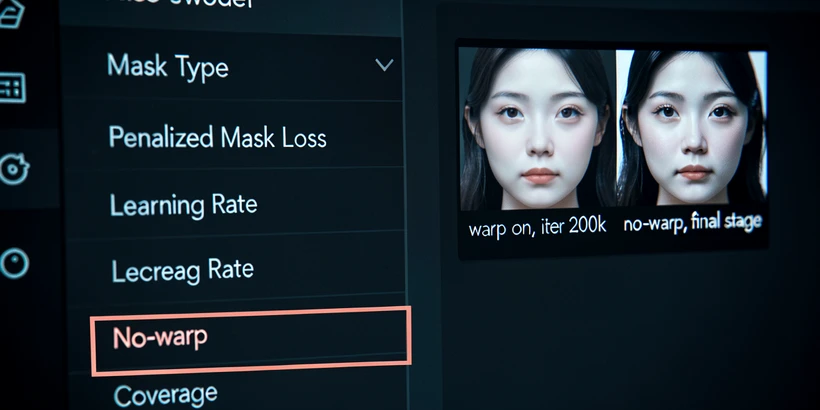
FaceSwap deliberately warps training data to build a robust model. Warping forces the network to generalize across small geometric perturbations, which is exactly what you want early on. Late in training, the same warping prevents the model from locking onto the precise pixel alignment that makes a swap look sharp. The fix is the no-warp option: leave warping on for the bulk of training, then disable it for the final stage to let the model converge on a sharper output. Most beginners never find this toggle, and it shows in the result.
Cause 4: Blurry or low-quality source / target image
Online tools and one-click swappers give you no training pipeline to tune. Input quality is most of what you control. Heavy motion blur, out-of-focus areas, or harsh contrasty shadows degrade face detection accuracy before the swap even begins, as documented in the autoclipping.com guidance on face swap input quality. The detector miscrops, the alignment drifts, and the swap inherits the original blur.
- Use a clear, well-lit, mostly front-facing image; slight head rotation is fine, severe profiles are not.
- Keep the face within the supported detection ceiling of 1024x1024 pixels for sharp feature retention.
- 720x720 is a sensible practical baseline for source resolution; below that, fine detail simply is not in the input.
- Watch for skin tone or brightness mismatch between the swapped face and the target. The result reads as blurry even when the geometry is fine; an AI image enhancer that auto-corrects brightness and contrast usually clears it.
Cause 5: Naive upscaling after export
Resize a face-swapped photo from 720 px to 1440 px in a standard editor and the result looks blurry by construction. Bicubic and bilinear interpolation have no source of new detail; they smear existing pixels across more space. AI upscalers solve a different problem: they hallucinate plausible high-frequency detail that was never in the original, learned from millions of reference faces.
Apply upscaling as the last post-processing step, after the swap is finished and the face restorer has run. AI upscalers commonly offer 200% and 400% factors. Pick the smallest factor that hits your target size. Note the difference in tools: an AI upscaler adds resolution, while an AI sharpener recovers edge detail without changing dimensions. Reach for the sharpener when the size is already correct but the edges read as soft.
Quick-fix checklist before you re-run the swap
Two minutes with this list will catch four of the five causes before another long render eats your evening.
- Training device: dedicated GPU active, not CPU fallback (Cause 3).
- Face enhancer: GFPGAN or CodeFormer registered as a frame-processor with no
not foundline in the log (Cause 1). - Model resolution: current model trains above 64 px output, especially for any close-up target (Cause 2).
- Dataset variety: training set covers multiple angles, lighting setups, and expressions for both face sets (Cause 3).
- No-warp toggle: enabled for the final training stage, off during early iterations (Cause 3).
- Inputs: source and target frames are sharp, well lit, at least 720x720, and within the 1024x1024 detection ceiling (Cause 4).
- Post-export resize: any size increase ran through an AI upscaler, never a generic bicubic resize (Cause 5).
If every box ticks and the output is still soft, the most likely remaining suspect is dataset variety rather than iteration count. Add footage from a new lighting setup before adding another 100k iterations.
ok this is the diagnosis flow i've been missing. been chasing the blurry output for weeks and never thought about ordering causes by cost. running through it tonight
tbh the ordering only works if you actually have access to the training pipeline. for the online one-clickers cause 1 through 3 don't even apply, you only get cause 4 and 5. kinda glosses over that
fair, but i'm on Deep-Live-Cam local so the full list maps. that face_enhancer not found warning literally bit me last week, took me 2 days to figure out it was silently skipping
2 days for that one? same thing happened to me, mine was a truncated onnx download. the gfpgan file was 273mb instead of the full size, swap ran fine restorer never fired. hash check saved me eventually
wait, hash check on what exactly? the inswapper or the gfpgan weight
both. inswapper_128.onnx and the gfpgan v1.4 weight. they publish checksums on the release page, just compare. the silent truncation is the worst part because the build doesn't crash
ok i'll redo this. mine was a 3050 4gb same as the issue thread, ONNX 1.21.0. weirdly i had 137 clean swaps before that warning showed up, so it's not deterministic on this card
yeah cuda execution provider is flaky in 1.21. i think 1.22 fixed it but onnx 1.22 needs cudnn 9 which broke my torch install. ended up rolling back. for now i just stay on 1.20
the whole face_enhancer postprocess thing is a hack honestly. inswapper outputs soft because it was trained that way, bolting gfpgan on top is just hallucinating texture. half the time codeformer at 0.5 looks better than gfpgan at 0.85. anyway
hmm, hadn't tried codeformer that low. node says 0.7 to 1.0 in the article, but if 0.5 reads more natural i'll test it on the next batch
0.5 is too low on close-ups, the identity drifts. on medium shots sure. can't speak to portraits past 1080p though, never published that big
ran a 23-frame test at 1080p portrait yesterday. visibility 0.85 looked the most stable. 0.7 had jitter on the eyelids, 1.0 went plasticky on the skin
yeah but jitter at 0.7 might be the spatial jitter thing they mention with the 5090 builds, not the restorer weight. different artifact, easy to confuse