
JPG or PNG for face swap: the format rules that actually change your output quality
Use PNG when quality is the priority and JPG when file size or upload limits force the trade. That single rule covers most cases, but the reason it works changes at each stage of a face swap workflow. The format you upload, the format used for model training, and the format you export are three separate decisions, and JPEG hurts each one in a different way. Below, the format choice is mapped to the workflow stage where it actually matters.
Why image format matters for face swap quality
Blurry skin edges, smeared eyes, mismatched tone along the jawline. When a face swap looks unnatural, the input photo is often the cause, and the format of that photo is the part most users never inspect. JPEG is a lossy compression scheme: some image data is permanently deleted to shrink the file. PNG is lossless: every pixel survives the save, the file gets larger, and nothing is discarded. For a human viewer the deleted data is usually invisible. For AI face detection it is not.
Three stages depend on this choice. First, the upload, where the AI runs face detection and landmark alignment on what you sent it. Second, model training, where the dataset feeds a learning loop. Third, the export, where your finished face swap is saved and possibly edited again. Each stage rewards a different balance of quality and file size, and the cost of a bad call shows up in different places: a mushy swap, a model that learned the wrong texture, or a slowly degrading copy that you keep re-saving.
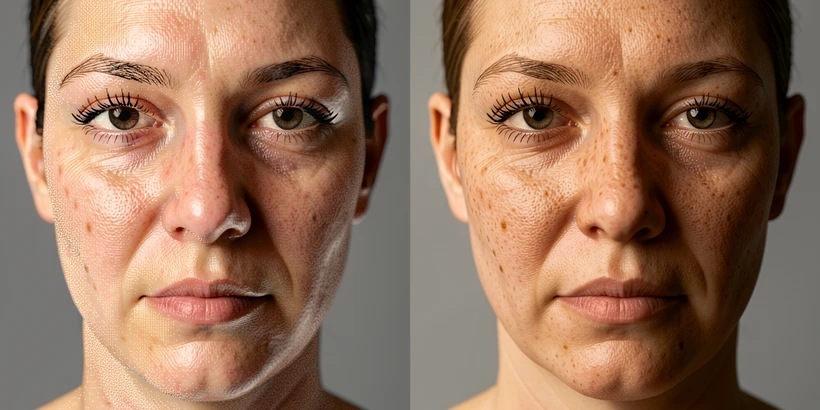
JPG vs PNG: the core technical difference in 60 seconds
JPEG was created by the Joint Photographic Experts Group and launched in 1992 as the standard compressed format for digital photography. It uses lossy compression, which means some image data is permanently deleted during the compression process to reduce file size. Its 24-bit color depth supports millions of colors, which is why it handles continuous-tone photographic images so well. PNG takes the opposite approach: lossless compression, no data lost when the file is written, and full alpha transparency support that JPEG lacks entirely.
Size is where the trade shows up. PNG files are typically 2 to 10 times larger than equivalent JPGs, depending on the data they store. A 4 MB JPG portrait can become a 20 MB PNG without changing a single pixel of its visible appearance. For face swap workflows, that bigger file is the price of preserving the facial features the AI cares about. For social sharing or thumbnails, the bigger file is mostly waste.
Stage 1: Input format, what to upload to a face swap tool
PNG is the safer upload choice when quality is the priority. Lossless compression preserves the fine facial features that face detection algorithms read: the texture along the jawline, the precise edge of an eyelid, the gradient of skin tone across the cheek. When that information is intact, the alignment step lands more accurately and the swap blends with fewer seam artifacts.
JPEG is acceptable for casual use at moderate compression levels. The problem is heavy compression, where blocks become visible across smooth areas and the detector starts mistaking compression noise for facial texture. JPEG lossy compression can introduce defined blocks where there should be smooth transitions, particularly obvious on flat-toned regions like a cheek under soft light. If those blocks land near a landmark point, alignment can drift and the swapped face will not sit cleanly on the target head.
There is a reason JPEG persists anyway. Its balance between file size and visual quality makes it ideal for real-time applications and tools with limited storage or upload size. Many web face swap tools accept JPG specifically because it cuts upload time on slow connections and keeps server costs predictable. Icons8 Face Swapper, for example, accepts JPG, PNG, and WEBP for input images and supports detected face sizes up to 1024 by 1024 pixels. The 1024-pixel ceiling is the actual quality cap to plan for: anything beyond it gets downscaled regardless of the format you send.
Pro tip for mobile users hitting upload size limits: stay on JPG, but keep the quality setting as high as your tool allows. Quality 85 to 95 is the practical safe range. Below quality 80, block artifacts around facial edges become visible and detection failures start to appear.
Stage 2: Training format, why PNG is required for face swap model datasets
If you are extracting faces to train or fine-tune a face swap model, this is where format choice matters most. The Faceswap.dev site admin (bryanlyon) explicitly advises against JPG for face extraction training, because JPG is a lossy format and its compression artifacts can affect training quality even when the human eye sees nothing wrong. PNG is the standard recommended format for face extraction datasets used in face swap model training.
JPEG artifacts that look invisible on a single image still leave a measurable signal in the pixel data. Across thousands of training images, the model learns that signal as if it were a real facial feature, and the result shows up at inference time as edge noise and tone mismatch.
The mechanism is straightforward. Face extraction crops a face out of a source image and feeds it into a learning loop that maps facial features to a latent representation. JPEG encodes images in 8x8 blocks; under compression, the boundaries between those blocks pick up subtle ringing and color shifts. The model has no way to know those shifts are an encoding artifact rather than a real skin texture, so it learns them. Multiply by a dataset of 5,000 to 50,000 images and the noise becomes part of the trained behavior.
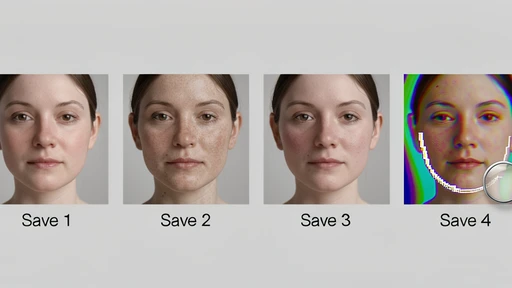
Even at the highest JPEG quality settings, lossy compression is still lossy. The artifacts get smaller, not absent. They accumulate. And they do not undo themselves: once a face has been extracted from a JPG and saved as JPG, opening and re-saving compounds the problem because each cycle applies lossy compression again, losing a little more information each time it is saved. PNG datasets sidestep this entirely. Saving a PNG ten times produces the same file ten times.
Stage 3: Output format, how to save your face-swapped image
Save as PNG if the image will be edited again, composited onto a new background, or re-saved more than once. Lossless format prevents the compounding quality loss that JPEG produces every time you hit save. For professional or print use the same rule applies: PNG preserves more detail and avoids the compression artifacts that show up under enlargement.
Save as JPG when the image is a finished, single-purpose deliverable for social sharing or web use, where the file is small, the viewer will not re-edit it, and a 1:1 visible match to PNG is not required. The size advantage is real and worth taking when it matches the use case.
PNG transparency is the other reason this stage matters. Alpha channel support is essential when compositing a swapped face onto a new background, because PNGs can store transparent pixels that blend cleanly with whatever sits behind them. JPG cannot represent transparency at all, so a face-swapped JPG carries its original background as a baked-in rectangle that you have to remove by hand.
Watch for tools that default to JPG output. A face swap tool that exports JPG by default is silently degrading the result before you ever see it, especially if you plan to edit further. Check the export options and pick PNG when it is offered.
What about WEBP and other formats?
WEBP supports both lossy and lossless modes and is gaining acceptance in web-based face swap tools. Icons8 Face Swapper accepts it alongside JPG and PNG. In its lossless mode, WEBP gives you PNG-like fidelity at smaller file sizes, which makes it theoretically ideal for face swap inputs. The catch: tool support is still uneven. Verify acceptance before relying on it, because a rejected upload at the wrong moment is worse than a slightly larger PNG.
HEIC is Apple's proprietary format for images captured on iPhone and iPad devices running iOS 11 or later. It produces JPEG-like quality with more efficient compression, but support outside Apple's ecosystem is limited. Many face swap tools simply reject HEIC uploads. The fix is to convert to PNG (best quality) or JPG (smaller) before uploading. iPhone users who do this often can switch the camera to JPG capture under Settings, Camera, Formats.
BMP retains the highest possible quality because it stores images uncompressed. The files are very large and processing is slow, which is why BMP is rarely used in modern face swap or face recognition workflows. If you have a BMP source and want to preserve every pixel, convert to PNG: same lossless guarantee, much smaller file. When in doubt with HEIC or BMP, convert to PNG before uploading.
Quick-reference: format decision table for face swap workflows
| Use case | Recommended format | Why |
|---|---|---|
| Casual upload for a quick face swap | JPG (acceptable) or PNG (better) | JPG fine at quality 85+. PNG sharper if you have the upload budget. |
| Upload for maximum face detection accuracy | PNG | Lossless input gives the detector clean texture and edge data. |
| Face swap model training dataset | PNG (required) | JPG artifacts accumulate across the dataset and degrade the trained model. |
| Export for social media | JPG | Smaller file, single-purpose deliverable, no re-editing. |
| Export for further editing or compositing | PNG | Lossless, no re-save loss, alpha transparency for backgrounds. |
| Export for professional or print use | PNG | Preserves detail under enlargement, no JPEG block artifacts. |
| iPhone HEIC photo | Convert to PNG or JPG first | HEIC support is limited. PNG for quality, JPG for size. |
Common misconceptions about JPG and PNG in face swapping
Myth: JPG at highest quality is identical to PNG for AI training. Reality: even maximum-quality JPEG is lossy. Its artifacts are often invisible to human viewers, but they remain in the pixel data and AI algorithms can detect them. Across a training dataset, those signals show up in the trained model as edge noise and tone mismatch. PNG is the correct choice for face extraction datasets, and the Faceswap.dev admin makes the same call publicly on the project forum.
Myth: JPEG quality loss is always visible to the eye. Reality: at moderate compression levels the degradation is often invisible to humans. The artifacts still exist in the pixel data, where face detection algorithms that rely on precise edge and texture information can absolutely see them. A photo that looks fine on your phone screen can still throw off landmark alignment in a face swap pipeline.
Myth: PNG is too large to be practical. Reality: PNG files are 2 to 10 times larger than JPG, but for a single face swap input or output image on a desktop connection, that overhead is rarely a real constraint. The quality benefit outweighs the size cost in most non-mobile cases. Use JPG only when an upload limit forces you to.
Myth: JPEG is ideal for all photographic face swap inputs because it was designed for photographs. Reality: JPEG was built for continuous-tone photographic images and handles smooth color gradients well. But face swap AI is not a human viewer. It needs the precise edge and texture data that JPEG compression actively degrades. PNG is better when quality is the priority, and the difference is biggest exactly where the swap will be judged: along the jawline, around the eyes, and where skin texture meets hair.
tried png like the article says, app still spat out a blurry result. format isn't the bottleneck, the model is
@ppd which tool? bc on some of them the resizer kills the input before detection even runs
20mb upload on hotel wifi, no thanks. quality 92 jpg is fine for what i do
more interested in whether the server keeps the raw png after processing. nobody talks about that