
Canva Face Swap, Reviewed Honestly: Where It Lives, What It Costs, and When It Falls Short
Short version: yes, Canva does face swap, but not where most people look. The feature sits inside the Canva Apps marketplace, not Magic Studio, and it draws from the same 500 monthly AI credits Pro users spend on Magic Media and Dream Lab. Output is moderate, closer to a creative edit than a photoreal deep swap. For an existing Canva Pro subscriber who needs the occasional social post, it works. For marketing creative or video work, it doesn't.
Does Canva Have a Face Swap Feature? (And Where to Find It)
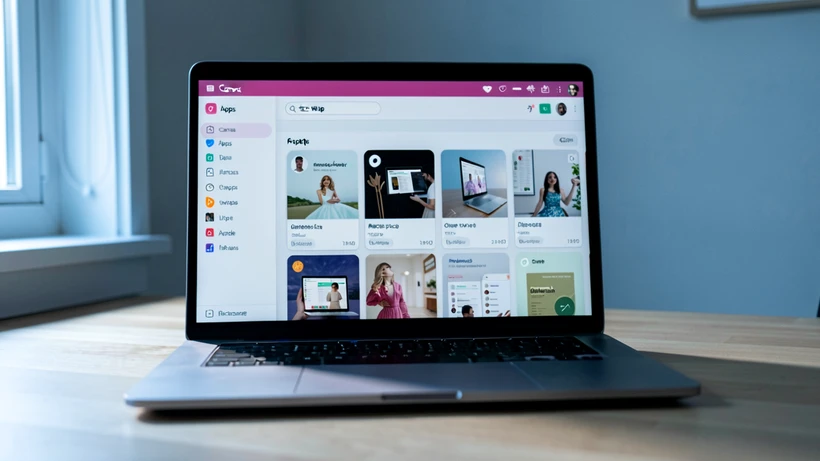
Yes. Canva supports both image and basic video face swap, but the access path trips up almost every new user. There is no Magic Studio button labeled Face Swap. Instead, the feature is delivered through the Canva Apps marketplace, where third-party and first-party AI tools plug into the editor.
On desktop, the route looks like this:
- Open any design (a blank Instagram post works fine for testing).
- In the left sidebar, click the Apps icon at the bottom of the toolbar.
- Search for face swap in the Apps panel and pick the result that mentions face swapping (the official AI Face Swapper card, or one of the integrated apps).
- Add the app to your editor, upload your source photo, and select the target face from inside the design.
- Wait for processing, then drop the resulting image into your canvas.
Pixelbin.io's roundup of face swap tools rates Canva's capability as producing moderate results, framing it as more creative edit than deep realistic swap, and confirms it covers both stills and basic video. That single line tells you most of what you need to know before opening the editor.
Is Canva Face Swap Free or Does It Require Pro?
Technically, you can try face swap on the free plan. Practically, the free ceiling is low enough that most people burn through it in a single afternoon of testing.
Per wavespeed.ai's 2026 review, Canva Free gives you 50 lifetime AI image generations and 5 lifetime video generations across all AI features combined. Lifetime, not monthly. Run a few experimental swaps, generate a couple of practice images in Magic Media, and you are already eyeing the upgrade button.
Canva Pro lifts the budget to 500 AI credits per month, also shared across every premium AI feature: Magic Media, Dream Lab, Magic Design, Canva Code, and the face swap apps. Whether each individual face swap draws one credit or several is not clearly published in Canva's own docs, and the apps in the marketplace can be metered differently from native Magic Studio tools. Treat the per-swap cost as something you'll want to verify in your own account before committing to high-volume work.
If you only need face swap for the occasional meme or social tile, the free plan can stretch a long way. If you need it weekly, Pro is the realistic floor.
How Many Credits Does a Canva Face Swap Use?
Here is where things get awkward. The 500 Pro credits are a shared pool, and Canva publishes the consumption rate for some features but not others. Wavespeed.ai notes that Magic Media generates four images per prompt in 10 to 30 seconds, and that the same 500-credit allowance covers Magic Media, Dream Lab, Magic Design, Canva Code, and the face swap pathway.
What that means for budgeting:
- If face swap is metered at one credit per operation (the most common assumption among users), 500 swaps a month is the theoretical ceiling, with no other AI use.
- Mix in regular Magic Media generations and Dream Lab runs, and the realistic working budget for face swaps drops fast (often below 100 per month for an active designer).
- Credits do not roll over. An unused April balance does nothing for you in May.
- Heavy video face swap consumes the separate 5 AI video generations per month limit on paid plans, which is a much harder ceiling than image credits.
Anyone planning a content calendar around Canva face swap should run a one-week test in their own account, log how many credits each swap actually costs, and project from there. Canva's billing dashboard is the only authoritative source for that number, and it shifts as Canva re-tunes the AI suite.
Pro tip: before any high-volume project, generate a single face swap and watch your credit counter. The delta is your per-swap cost. Multiply by your planned monthly volume and decide whether Canva or a per-task tool like Remaker AI is cheaper for your specific use.
Output Quality: What Canva Face Swap Actually Produces
Pixelbin.io's testing puts Canva face swap at moderate quality, more useful for creative edits than for trying to convince anyone that the swap actually happened. That matches what stylefactoryproductions.com flags about Canva AI more broadly: AI-generated images and videos are not produced in high resolution by default, and face swap output inherits that ceiling.
Eesel.ai's review is blunter on the realism question. When users push Canva to create lifelike images, the results are often weird-looking to downright creepy, with strange faces and unnatural elements. Face swap doesn't escape that pattern.
Where the swap holds up
- Front-facing portraits with even lighting and a clear, unobstructed face.
- Source and target with similar skin tone, age range, and head angle.
- Casual social posts where viewers won't zoom in to inspect pixels.
- Meme-style edits where a slight uncanny quality is part of the joke.
Where it breaks
Two failure modes are worth understanding mechanically, because they explain most bad outputs.
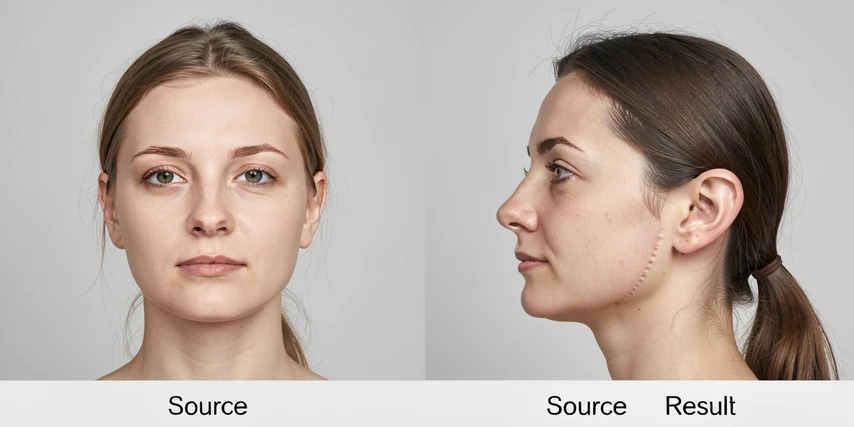
Side profiles and steep head angles. Face swap pipelines start with facial landmark detection: eyes, nose tip, mouth corners, jaw line. On a front-facing photo the landmark map is reliable. Turn the head 60 degrees and several landmarks disappear behind the cheekbone. The blender then has to guess where the missing geometry should sit, and the guess often shows up as smearing along the jaw or a mismatched ear.
Low-resolution source images. When the source face is, say, 200 pixels across, the model has very few real samples of skin texture, eye color, and hair edge to work from. It compensates by hallucinating detail, and hallucinated skin almost always looks plastic against the higher-resolution target image. Partial occlusion (a hand near the cheek, hair across one eye) compounds the same problem: missing input, invented output.
Default output resolution is the other recurring complaint. If the final asset is destined for a printed flyer or a high-DPI display ad, expect to upscale (and to lose more realism in the process).
Mobile vs Desktop: Can You Face Swap on the Canva App?
Canva itself runs on Web browser, Mac, PC, Chromebook, iOS, and Android, per wavespeed.ai. The Apps marketplace, where face swap actually lives, is a different story.
On desktop browsers and the macOS or Windows clients, the Apps panel is fully exposed in the left sidebar and face swap apps install cleanly. On the iOS and Android Canva apps, the marketplace surface is pared down: some apps appear, others don't, and the available list shifts between releases. Anyone planning a mobile-first workflow should verify the specific face swap app they want is installable on their device version before committing.
Practical recommendation: do the swap on desktop, sync the result through your Canva account, and finish layout work on mobile if needed. The desktop Apps panel is the most reliable surface.
Privacy: What Happens to Your Face Data in Canva?
This is the gap most reviews skip. Canva is an Australian private company (creativebloq.com confirms it is independent of Microsoft, Adobe, and Google), which puts uploaded face data under Australian privacy law plus whatever Canva's own policy says. The platform officially permits AI-generated designs for personal and commercial use, per sonary.com.
What Canva does not publicly clarify, at least in any place a competitor review has surfaced:
- Whether uploaded face images are deleted after the swap completes or kept on storage.
- If retained, for how long.
- Whether uploaded faces are eligible to be used in training future AI models.
Pixelbin.io flags these same questions as broadly unanswered across face swap tool reviews. Context for why this matters: Reface, a competing dedicated app, was documented as shifting to a facial data retention window of up to three years, which sparked a wave of user concern. Without an explicit statement from Canva, you should assume the same questions are open and read the Canva privacy policy directly before uploading client faces or anything sensitive.
Canva Face Swap Pricing: Full Plan Breakdown
Face swap doesn't have its own price tag. It rides on top of whichever Canva plan you're on. Here is the relevant slice, with figures verified at publication time against sonary.com and wavespeed.ai.
| Plan | Price | What it gives face swap users |
|---|---|---|
| Canva Free | $0/month | 50 lifetime AI image generations, 5 lifetime video generations, 5GB storage. Enough to test, not enough to use. |
| Canva Pro | $15/month or $120/year (1 user) | 500 AI credits per month shared across all premium AI features, 1TB storage, 5M+ templates, 30-day free trial (payment info required upfront). |
| Canva Teams | $10/month per person (min 3) or $100/year per person | All Pro features plus collaboration. 30-day free trial with payment info upfront. |
| Canva Enterprise | Custom | Negotiated terms; relevant only if face swap is part of a larger procurement. |
One pricing footnote worth flagging: eesel.ai lists Canva Pro at US$14.99 a month, while sonary.com lists $15. Both numbers appear in current sources. Check the Canva pricing page for your region at the moment you sign up, since regional VAT and recent price tweaks both move the headline figure by a dollar or two.
Note that the 30-day Pro trial is only useful if you remember to cancel. Canva requires payment information up front, and the conversion to paid is automatic at day 31.
Use-Case Decision Matrix: When Canva Is Good Enough vs When to Reach for a Dedicated Tool
This is the part the brief-style reviews never finish. Canva face swap is good for some jobs and wrong for others, and the line between them is sharper than the marketing copy admits.
| Use case | Canva good enough? | Reach for |
|---|---|---|
| Casual social media posts and memes | Yes | Stay in Canva. |
| Personal creative edits, family photo fun | Yes | Stay in Canva. |
| Marketing ad creative needing photoreal blending | No | Pica AI for realism. |
| Per-task cost transparency, multi-face or multi-mode swaps | No | Remaker AI for clearer credit accounting. |
| High-volume batch processing (hundreds per month) | No | A dedicated tool with predictable per-swap pricing. |
| Video face swap longer than a few seconds, with lip sync | No | Magic Hour or another video-specialist. |
| Programmatic integration into your own product | No | Anything with a public API. Canva does not have one for AI generation, per wavespeed.ai. |
A few specifics worth pulling out. Canva AI video tops out at 8-second clips, English-only prompts, and 5 generations per month on paid plans (wavespeed.ai). Anything longer or in another language hits a wall. And on integrations, Canva's Connect API exists but is scoped to design workflow, not AI generation, so developers cannot wire face swap into their own apps from Canva.
If you find yourself opening the face swap app more than three times a week, you have probably outgrown Canva for that workflow. The shared credit pool is the bottleneck, not the app itself.
Verdict: Is Canva Face Swap Worth It?
Canva face swap is a convenience feature, not a competitive face swap tool. It trades realism and per-task transparency for the one thing nothing else offers: it is already inside the place where you are designing the rest of your asset.
For the right reader, that is enough.
Best for
- Existing Canva Pro subscribers who occasionally need a face swap inside a larger design and don't want to pay another subscription.
- Social media managers producing meme-tier or fun content where moderate realism is fine.
- Non-designers who already know the Canva interface and would rather not learn a new tool.
Not for
- Anyone who needs photorealistic output for paid marketing creative.
- High-volume swap workflows that would chew through the 500 monthly credits.
- Video face swap beyond a handful of short clips per month.
- Developers who need an API.
On platform reputation, Canva broadly scores well: 4.7/5 on Capterra (13,123 reviews) and 4.7/5 on G2 (6,597 reviews), per stylefactoryproductions.com. The outlier is Trustpilot at 2.9/5 (3,068 reviews), where billing complaints dominate. None of those scores are face swap specific, but they are the operating context: a platform users mostly love, with a recurring undercurrent of frustration around payments.
Final call: if you already pay for Canva Pro, the face swap app is a nice extra. If you are considering Pro purely for face swap, look at Remaker AI or Pica AI first and compare per-swap economics. The credit pool math rarely favors Canva once face swap becomes a recurring task instead of an occasional one.