
Canva vs Pixlr for Face Swap: The One Has the Tool, the Other Doesn't
Short answer first. If you specifically need to face swap a photo, Pixlr wins. It is the only one of the two with a dedicated AI Face Swap tool. Canva is a stronger general design platform, but it has no native face swap feature at all. That single fact rewires every other criterion in this comparison: pricing, templates, mobile apps, privacy. None of them rescue Canva on the face swap question, because there is no Canva face swap to compare against in the first place.
Below: how Pixlr's 4-step workflow actually runs, what you can (and cannot) cobble together inside Canva, an 8-criterion head-to-head, a privacy section worth reading before you upload your face anywhere, and a verdict segmented by use case. Pricing and feature claims here are taken from each platform's own pages and were verified at publication.
Does Canva Have a Face Swap Tool? (The Answer Changes Everything)
No. Canva has no dedicated face swap tool. Any face swap inside Canva requires a workaround – background removal plus manual layering – or a third-party integration. What Canva does offer is basic face retouching (the smoothing brush) and generative AI features like Magic Media and Magic Write. Useful tools, but they are not face replacement. Smoothing a chin is not the same operation as putting one person's face onto another person's photo.
Pixlr is the opposite. The AI Face Swap tool sits inside Pixlr Express alongside roughly ten other AI features (AI Image Generator, AI Generative Fill, AI Generative Expand, and friends). It is not buried; it is a named, dedicated workflow with its own landing page on pixlr.com. That asymmetry is the entire framing of this comparison. If you arrived here assuming both tools sit at parity, that assumption is the first thing to drop.
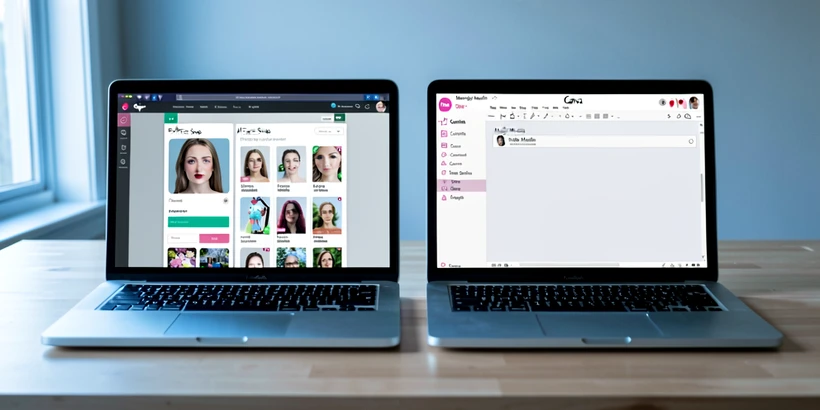
How Pixlr AI Face Swap Works: The 4-Step Workflow
Pixlr documents the AI Face Swap process as four steps on the official tool page. Nothing more, nothing fewer.
- Open the AI Face Swap tool inside Pixlr Express.
- Upload your face photo. This is the source face that will be transferred.
- Upload the target photo, or pick a built-in template instead.
- Download the result as a PNG file.
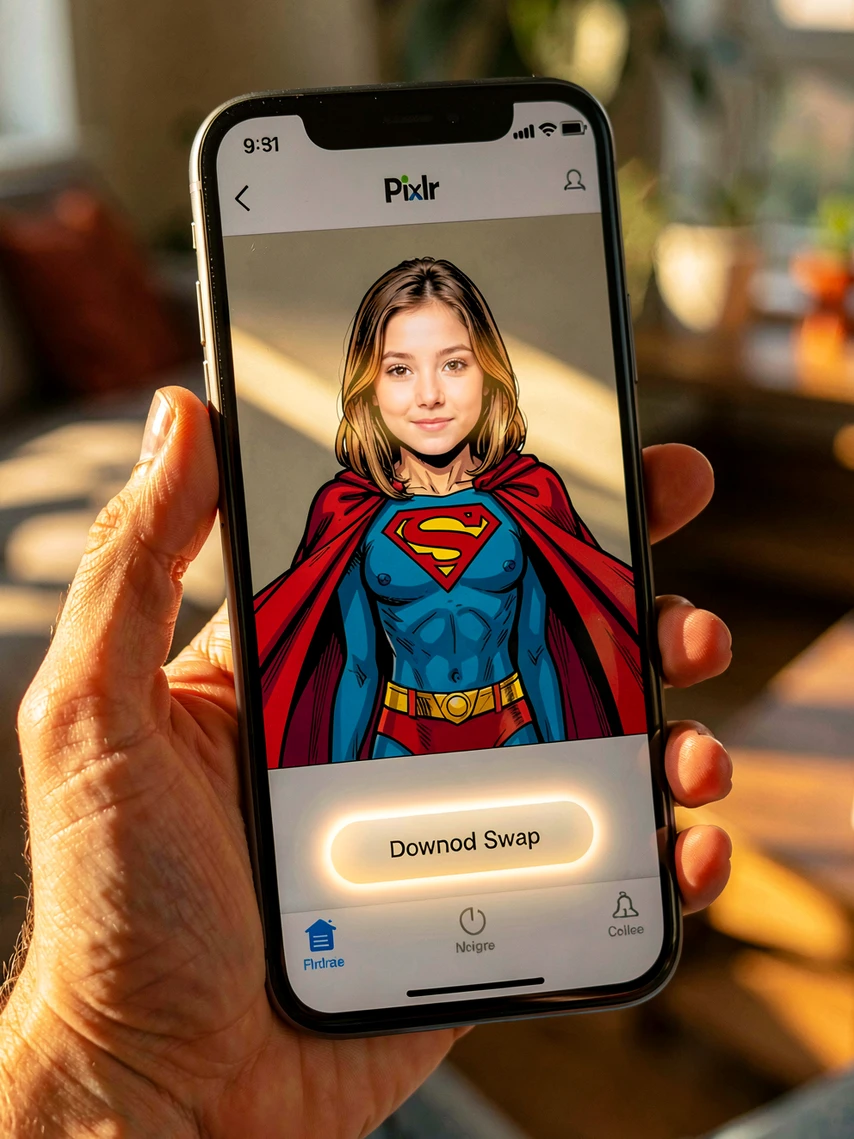
The templates are themed, which is most of the fun for casual use. Six categories ship out of the box: Adventure, Gym Buff, Sports, Fantasy, Beach Party, and Super Heroes. Want to put your face on a beach with your friends? Or onto a movie-poster superhero body? That's what the template library is for. PNG output keeps transparency clean if you want to drop the result into another design later.
Pro tip: a sharp, evenly lit, front-facing source photo produces dramatically better results than a tilted or shadowed one. Face landmark detection is the step that aligns your face onto the target; if half your face is in shadow, the alignment math has less to work with and the blend looks plastic at the jawline.
How to Approximate a Face Swap in Canva (Workarounds and Limitations)
You can fake it in Canva. You cannot really do it. The honest workaround chain looks like this: cut out a face using Canva Pro's background removal, paste it onto the target image as a separate element, scale and rotate it by hand, then hope the lighting matches. It does not, usually.
Two mechanical reasons it falls apart. First, Canva has no layer or mask editing. Realistic face replacement needs feathered masks at the hairline and jaw so the seam disappears. Without masks, you get a hard cut-out edge that screams composite. Second, there is no AI blending step that matches skin tone, exposure, or color temperature between the source face and the target body. Pixlr's tool runs that blending automatically. Canva's editor leaves it to your eye and your patience.
Magic Media and Magic Design are sometimes pitched online as Canva's answer here. They aren't. Magic Media generates new images from a text prompt; it does not transfer a face from one photo to another. The animation presets (fade, slide, bounce) are equally beside the point. And if you have seen Reface mentioned in Canva-adjacent search titles, that is a separate third-party app, not a Canva native feature. Canva's brand surface and Reface's brand surface overlap in search results, which causes most of the confusion.
Head-to-Head: 8 Criteria That Matter for Face Swapping
| Criterion | Pixlr | Canva | Winner |
|---|---|---|---|
| Dedicated face swap tool | AI Face Swap in Pixlr Express | None (only smoothing + Magic Media) | Pixlr |
| Workflow simplicity | 4 documented steps to PNG | Manual cut-and-layer composite | Pixlr |
| Face swap templates | 6 themed categories | 0 dedicated | Pixlr |
| Output format | PNG | Not applicable | Pixlr |
| Post-swap editing depth | Layers, masks, ~100 filters | Basic adjustments only | Pixlr |
| Beginner ease of use | More technical UI | Drag-and-drop, gentle curve | Canva |
| Paid plan pricing | From $1.49/mo; team $9.91/mo annual | Pro $15/mo; team $30/mo | Pixlr |
| Mobile face swap | AI Face Swap in mobile app | No equivalent | Pixlr |
| Privacy statement on face uploads | Output ownership stated on tool page | No equivalent statement found | Pixlr |
| Surrounding template library | 1M+ templates | 2M+ templates | Canva |
Read the table top to bottom and the pattern is obvious. On every criterion that touches the face swap operation itself, Pixlr wins. Canva keeps two columns: ease of use for absolute beginners, and the size of the surrounding template library. Both are real strengths. Neither produces a face swap.
Free tier note worth verifying at publication: Pixlr's free plan covers Pixlr Editor features, and the company offers a 30-day free trial of Pixlr Premium with access to over 18,000 creative assets. Whether the AI Face Swap itself is fully unlocked on the free tier shifts over time, so check the tool page before committing to a workflow that depends on free access.
Which Tool Wins for Your Use Case?
A blanket verdict is unhelpful here, because face swap users are not one audience. Segment first.
- Casual meme makers and social media creators: Pixlr, easily. The themed templates (Super Heroes, Fantasy, Sports) are tailor-made for the format, and PNG output drops cleanly into Instagram or Reddit posts.
- Event planners building party invitations: use both. Run the face swap in Pixlr, export the PNG, then import it into Canva to wrap a themed invitation around it. This is the workflow that actually plays to each tool's strength.
- Professionals replacing a face in a stock photo for a LinkedIn headshot: Pixlr again, and lean on its layer/mask tools after the swap to fine-tune the collar, the lighting, and any edge artifacts.
- Total beginners with no editing background: Canva is gentler to learn overall, but it cannot do the face swap. Pixlr's 4-step workflow is still tractable for first-timers if you stick to the templates.
- Budget-conscious users: Pixlr's $1.49/month entry tier undercuts Canva Pro's $15/month by a factor of ten.
- Mobile-first users: Pixlr ships AI Face Swap in its mobile app. Canva mobile does not.
Privacy: What Happens to Your Face Photo After Upload?
This is the part of the comparison most competitor pages skip, and it shouldn't be skipped. You are uploading your face.
Pixlr's face swap page states it directly: "your creative output is entirely yours to own, ensuring your content remains private and secure." That is a public, on-product statement about ownership. It is not the same thing as a detailed retention policy, but it is more than nothing.
Canva, by contrast, does not publish an equivalent face-photo-specific statement on the tool surfaces. Its general privacy policy applies, of course, but there is no parallel callout for face uploads, because there is no face swap product to attach one to.
Honest gap to flag: neither platform publishes explicit face-photo retention timelines in their marketing copy. If retention windows matter to you (corporate use, minors in the photo, sensitive contexts), check each platform's current privacy policy before uploading. The fact base for this article does not include retention figures because no public source publishes them.
Pricing Breakdown: What You Actually Get Free vs Paid
| Plan | Pixlr | Canva |
|---|---|---|
| Free | Pixlr Editor features; 30-day Premium trial includes 18,000+ creative assets | $0/mo, 5GB storage, 1 brand kit, no face swap to gate |
| Entry paid | From $1.49/month | Canva Pro $15/month, 100GB storage |
| Team / business | Team $9.91/month (annual) | Canva Business $20/user/month; team $30/month |
The number that matters for face swap users is the entry paid tier, because that is where the AI Face Swap is reliably unlocked. At $1.49/month, Pixlr's entry plan is roughly a tenth the cost of Canva Pro. And the comparison is genuinely moot on Canva's side: there is no face swap feature to gate, free or paid. You are paying Canva Pro for storage, brand kits, background removal, and the magic-tool suite – not for face replacement.
Useful framing: if face swap is the primary reason you are subscribing to a tool, Pixlr's pricing wins by a wide margin. If face swap is one feature among many you need (collaboration, brand assets, video editing, 141M+ stock items), Canva's higher price might still pencil out, but you will need a separate face swap solution alongside it.
Verdict: Canva vs Pixlr for Photo Face Swap
Pixlr. For photo face swapping specifically, Pixlr is the winner, full stop. It is the only platform of the two with a dedicated AI Face Swap tool, a documented workflow, themed templates, PNG output, and a mobile app that supports the same feature.
Canva is the better general-purpose design platform. The 2M+ template library, real-time collaboration, video editing, and the 141M+ asset catalog are all real. They are also irrelevant to the face swap question. If you need face swap plus polished surrounding design (a birthday invitation, a meme caption layout, a LinkedIn banner around a swapped headshot), the cleanest pipeline is Pixlr first, Canva second. Use each tool for what it actually does.
And if budget is the deciding factor: Pixlr's paid plans start at roughly a tenth of Canva Pro, which makes the choice still easier for the face-swap-first reader.
ok so question. if i upload my face to pixlr for a swap, who actually owns the output, and more importantly where is that source face image sitting after? their page only says output is yours, nothing about retention of what i sent in
wait this is awesome, didn't know pixlr had face swap. gonna try the super heroes template rn
ran 17 photos through it last year for a project. half came out plastic at the jawline. results vary a LOT depending on the source pic
1.49 vs 15 is the real story imo. canva pro at 15/mo for storage and brand kits is wild if you only want one feature
ownership of the OUTPUT isn't the question. the question is what they do with the source face during processing. retention, training data, third party processors. that statement on their page is marketing, not a policy
@Seagull yeah exactly. output ownership is the easy promise. nothing about retention windows for the input
i just want to put my face on a beach lol
the article actually flags this at the bottom, neither publishes retention timelines in marketing copy. you have to dig into each privacy policy in full. canva's is longer last i checked
used pixlr free tier for like 3 months, face swap was paywalled by week 2 for me. the 30-day premium trial covers a bunch but the swap kept hitting credit limits
switched to a different tool after pixlr blurred my source pic into mush twice. that one tool, blanking on the name, started with R or M something
does the free trial actually include face swap or no
the legal angle nobody is asking about: consent of the person whose body you swap onto. that's the actual liability
@ryujehong this. if you face-swap a friend onto something without asking you're potentially looking at image rights issues in some jurisdictions
in EU specifically GDPR treats face data as biometric. uploading a third party's photo to a US-hosted ai tool without their consent is... not great. people don't think about this enough
ok but who's actually getting sued over a meme face swap, realistically
you don't get sued, you get a takedown and maybe a platform ban. consent question stays separate from the lawsuit question though
had a case where a coworker face-swapped me into a gym buff template as a slack joke. funny for 3 minutes, awkward for the rest of the week. no i won't share the image
the 6 template categories are Adventure, Gym Buff, Sports, Fantasy, Beach Party, Super Heroes. confirming because i've seen articles miscount these as 7 or 8
is the canva workaround actually unusable or just bad? if i bg-remove and paste a face manually does it really look that broken
yes. without a feathered mask the hairline gives it away every time. tried for 2 hours on a project, gave up. canva flat out doesn't have the masking primitives
downloading pixlr now, what file size limit does the source need to be
more important question, do they strip exif before processing. your face photo carries gps and timestamp unless you scrub it first. nobody talks about this