
Getting a clean deepfake video file when every free tool wants to stamp it
The reliable way to a watermark-free deepfake video is to never let a hosted tool stamp it in the first place. Process the face frames individually, then reassemble them in a free editor: because no tool ever touches the finished file, nothing gets watermarked. No GPU at home? Run a cloud notebook that hands you a raw MP4. Hosted swap apps are a mixed bag. Some export clean on the free tier, some lock clean export behind credits, and a few add a watermark deliberately. This guide maps which is which and walks the cleanest routes step by step.
Before you start, line up a few things: a source face and a target video with similar lighting and angles, and permission to use both likenesses (or an AI-generated face instead). For a self-reassembled export you also want a free editor such as OpenShot or DaVinci Resolve, plus FFmpeg for compiling frames and color work. No local GPU? A free notebook on Google Colab or Kaggle stands in.
Watermark avoidance vs watermark removal: the only distinction that matters
Removing a watermark and avoiding one are not the same job. Avoidance is structural. If you swap each frame as a separate image and stitch the frames back together in your own editor, no hosted service ever renders the final clip, so there is nothing to stamp. Percify documents exactly this: frames processed individually and reassembled in a free editor come out with no watermark.
Removal is the wrong frame to begin with. Some tools watermark on purpose. Deepfakesweb, for instance, adds digital watermarks and minor imperfections as an ethics control, a deliberate signal that the clip is synthetic. Trying to strip that is fighting the tool's intent, not a free-tier quirk. The clean path is the one where the stamp never lands.
Which free video tools actually export without a watermark
Free does not mean clean. A tool can be free to use and still hand you a stamped file, lock the clean export behind credits, or skip free video generation altogether. Here is the honest split among the names people reach for first.
| Tool | Free video? | Watermark on free export? |
|---|---|---|
| Frame-by-frame on faceswap.dev | Yes, frames processed individually | No, because you reassemble the clip yourself |
| JoggAI Deepfake Maker | Yes, no credit card required | Verify your downloaded file before trusting it |
| HeyGen free trial | One credit per day, standard avatars or talking photo only | Check the trial export |
| Deepfakesweb | No free video generation (high GPU cost) | Yes, watermark added on purpose |
The pattern is worth reading closely. JoggAI lets you create for free with no credit card, which makes it the easy hosted entry point. HeyGen's free trial, per Axios, gives one credit per day and only with standard avatars or a talking photo, so it is thin for real face-swap video. Deepfakesweb has no free video generation at all because of GPU cost, and what it does produce is watermarked by design. Only the frame-by-frame route guarantees a clean file, since you, not a server, build the export.
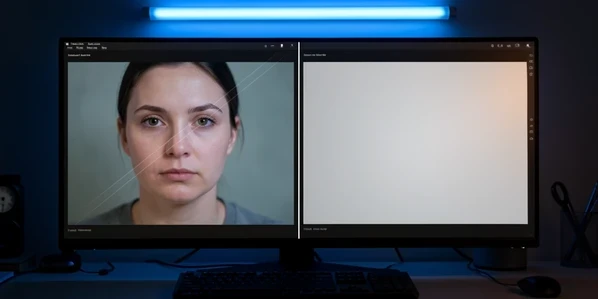
Method 1 (most reliable clean export): frame-by-frame face swap and manual reassembly
This is the route that cannot be watermarked, because you compile the final video yourself. It asks more of you than a hosted button, but the payoff is a file no service has ever stamped. Start by picking your footage carefully: source and target clips with good lighting and clear facial features blend far better than mismatched ones.
- Choose a source and a target video with similar lighting and clearly visible faces.
- Extract the face frames from both clips, exporting them as individual image files.
- Upload the faces to faceswap.dev and run the swap, letting the AI train on the extracted frames.
- Download the processed frames and rebuild the clip in a free editor such as OpenShot or DaVinci Resolve.
Patience is part of the method. Most free sites cap processing power, so a swap that would take minutes on a paid GPU can crawl. Let it run. The reward is the structural one from the section above: because the frames are handled individually and you stitch them together, no watermark ever appears on the finished export.
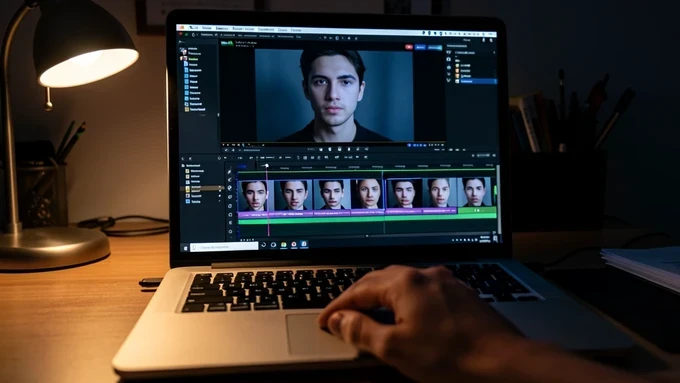
Method 2 (no powerful PC): cloud face swap with Google Colab and Roop
No local GPU? Borrow one. The Roop notebook runs the whole swap in Google Colab, then lets you download the result directly, with no hosted service sitting between you and the file to stamp it. Resemble's walkthrough lays out the flow plainly.
- Open the Roop notebook in Google Colab.
- Upload the source video and the target face image (one you have permission for, or an AI-generated one).
- Run the code to start the swap.
- Download the finished video once it renders.
Set your expectations on time and limits. Training can take hours, and GPU acceleration is what gives you a usable result. Free notebooks also cap how long compute may run: Colab allows about 12 hours and Kaggle about 6, per a community answer on ai.stackexchange.com. Plan to finish in one sitting so the session does not reset mid-render. Output formats include MP4 and AVI, downloaded clean.
Method 3 (fast hosted route): JoggAI and AKool face-swap video
Want a result in minutes rather than hours? Hosted tools trade control for speed. JoggAI is the gentlest start: upload the original video, upload the face photo you want swapped in, then click Swap Face. It is free to create with no credit card required, which is why beginners land there first.
AKool follows a similar shape with a bit more tuning. Upload your source video and target face, apply the settings and effects you want, then preview, adjust, and export. The catch with any hosted free tier is the same: download a short test clip and look at it before you build the whole project. If the free export carries a watermark, you will know in seconds rather than after an hour of work.
Fixing a bad-looking swap before you export
A clean file is only worth keeping if the swap itself looks right. Most failures trace back to your footage choice. Mismatched lighting and angles drop blend quality, so the face never quite sits on the body. The fix is upstream: pick a source with varied expressions and a target whose lighting and angles match it, and the AI has far less to reconcile.
The other common flaw shows up after the swap. Raw swapped frames often carry visible seams and color mismatch where the new face meets the original. Smooth those edges, run color correction so skin tones agree, then compile the frames with FFmpeg. That post-process step is what turns a technically watermark-free clip into one that also passes a second glance.
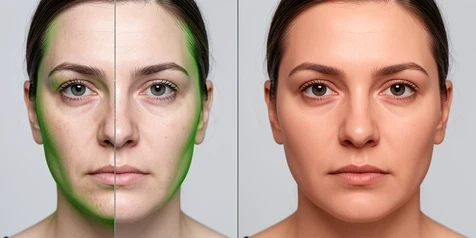
Consent, labeling and the legal line before you share
A watermark-free share is only safe when the clip is lawful to begin with. Get consent before you use anyone's likeness or voice. Never deepfake a real person without permission: unauthorized use can pull in misuse claims and publicity-rights violations, as HeyGen's own guidance warns. If you do not have a consented face, generate one instead.
Two more guardrails keep you clear. Legitimate sites try to detect copyrighted images and celebrity faces and will block you from using them, so reach for a person who has agreed or an AI-generated picture. And label the result. The AI Labeling Act of 2023 calls for clear labels on AI content, so mark the video as synthetic and keep your proof of consent on file. The honest version of this workflow is the only one worth sharing.
the whole 'structurally impossible to watermark' framing is doing a lot of work here. frame by frame still goes through faceswap.dev, the server still sees every frame, it just doesn't stamp the final mp4. clean file yes, private no.